NoNap vs iPhone Clock and Sleep Schedule: what actually wakes you up
Compare NoNap to Apple's built-in alarm clock and sleep features. Which one actually gets you out of bed, and when should you choose each.
Visana Studios
5 min read
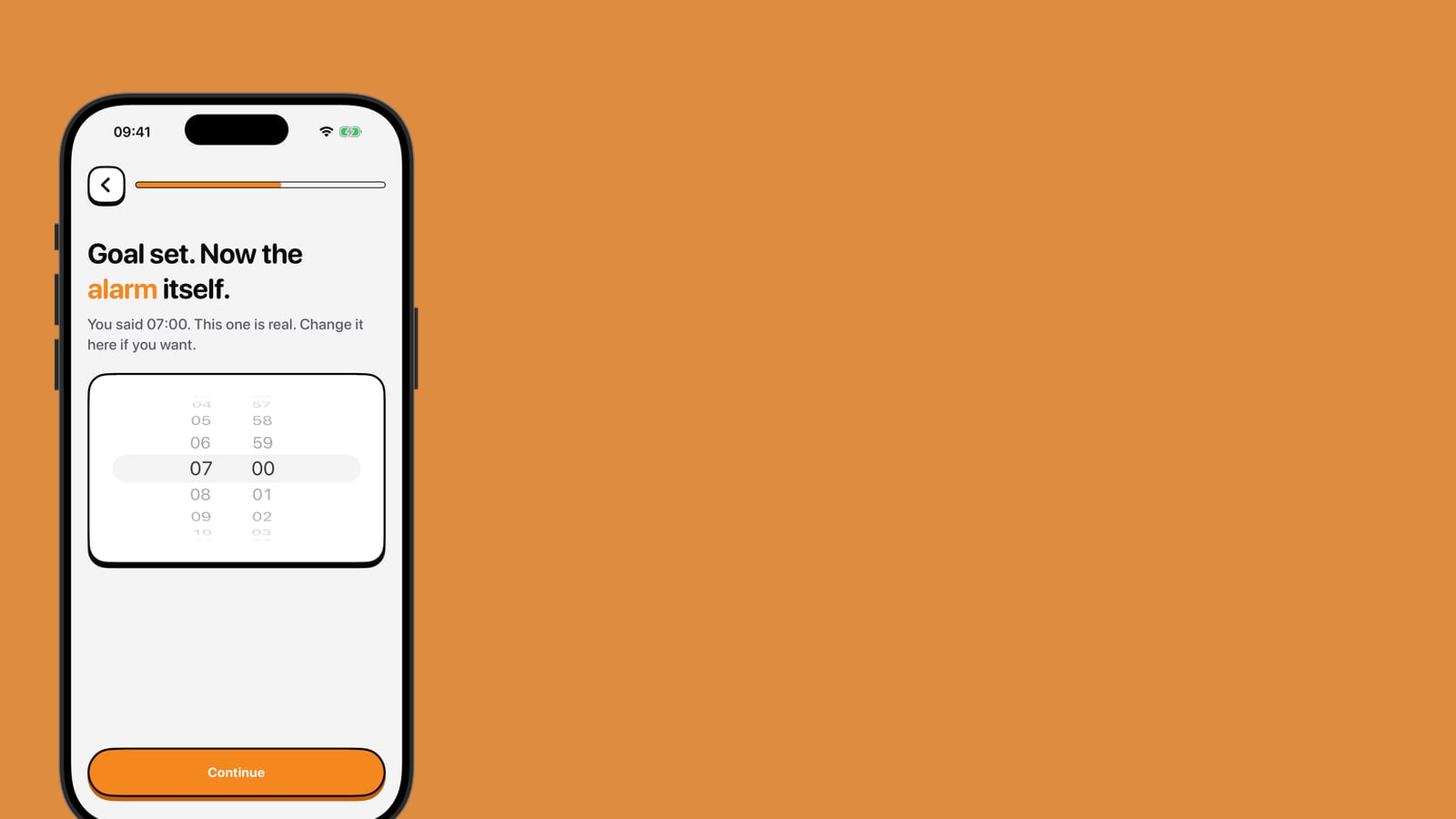
Your iPhone arrives with a Clock app built in. Apple also added a Sleep Schedule in the Health app that works with bedtime routines and morning alarms. Both are free. NoNap is paid, and designed for one specific job: getting you actually out of bed. The question is not whether one is better overall, but which one solves your actual problem on a Tuesday at 6:45 a.m.
What the iPhone Clock app does
The Clock app lets you set an alarm for any time. You pick a label, a sound, and whether it repeats on certain days. When the alarm goes off, you can snooze it. The default snooze is nine minutes, though you can customize it to any length from one to fifteen minutes. You can set as many alarms as you want.
That is the extent of it. The alarm rings. You dismiss it, snooze it, or silence it. Nothing forces you to get up.
What iPhone Sleep Schedule adds
Apple's Sleep Schedule, found in the Health app, wraps alarms in a broader bedtime routine. You set a bedtime and a wake time. The app shows you how much sleep you typically get, and it creates a Sleep Focus that filters notifications and calls between bedtime and wake time. You can add a wind-down period before sleep, during which your lock screen displays shortcuts for relaxing activities like meditation or music.
The morning alarm overrides Sleep Focus, so it will ring even when your phone is in Do Not Disturb or a custom Focus mode. Sleep Schedule tracks your sleep if you wear an Apple Watch or use iPhone's on-device detection, and stores that history in the Health app.
A Sleep Schedule gives you structure around sleep, but the alarm itself works the same way: it rings and waits for you to respond. There is no penalty for snoozing. No wake task. No reason you cannot stay in bed.
What NoNap requires
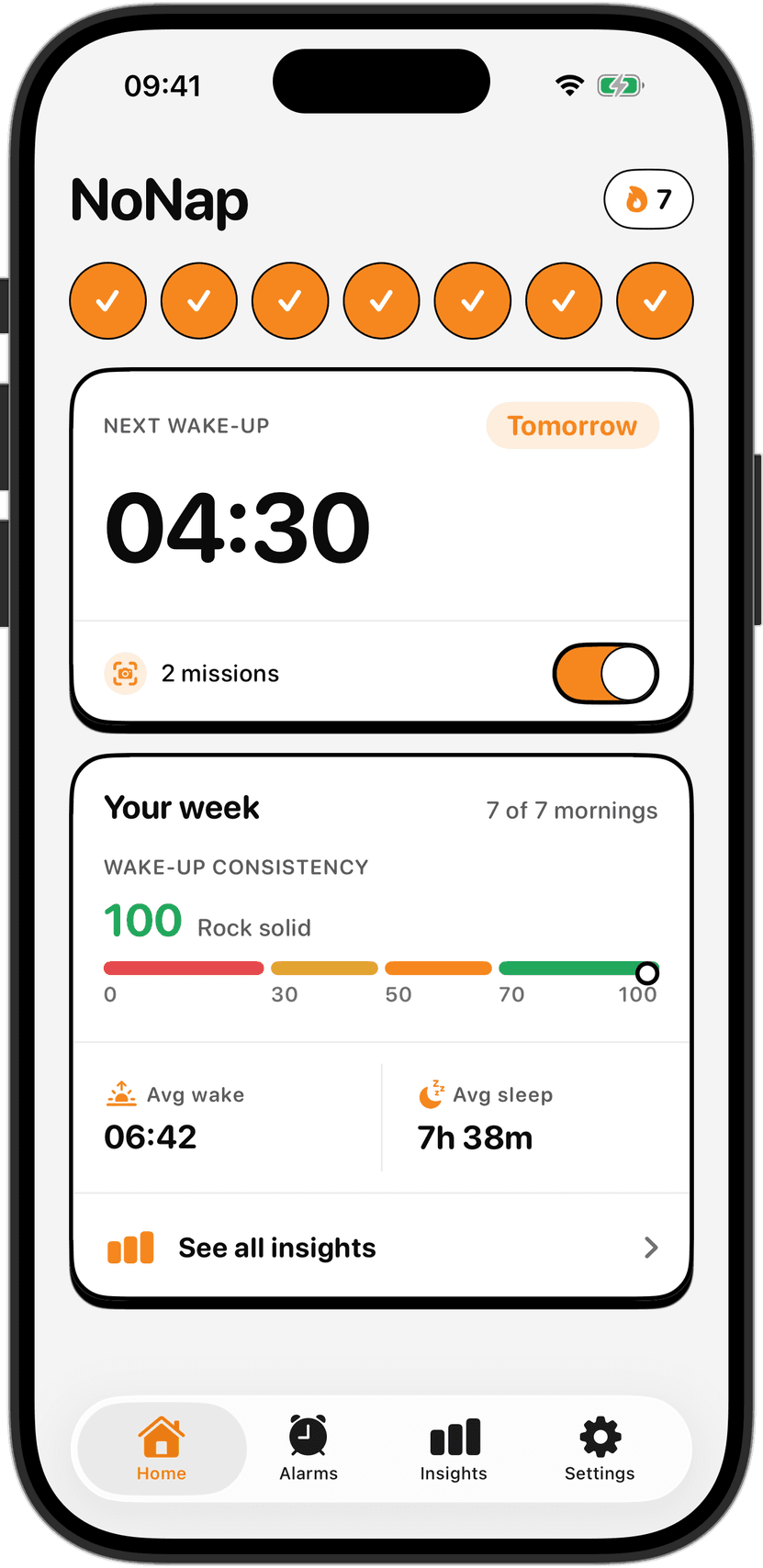
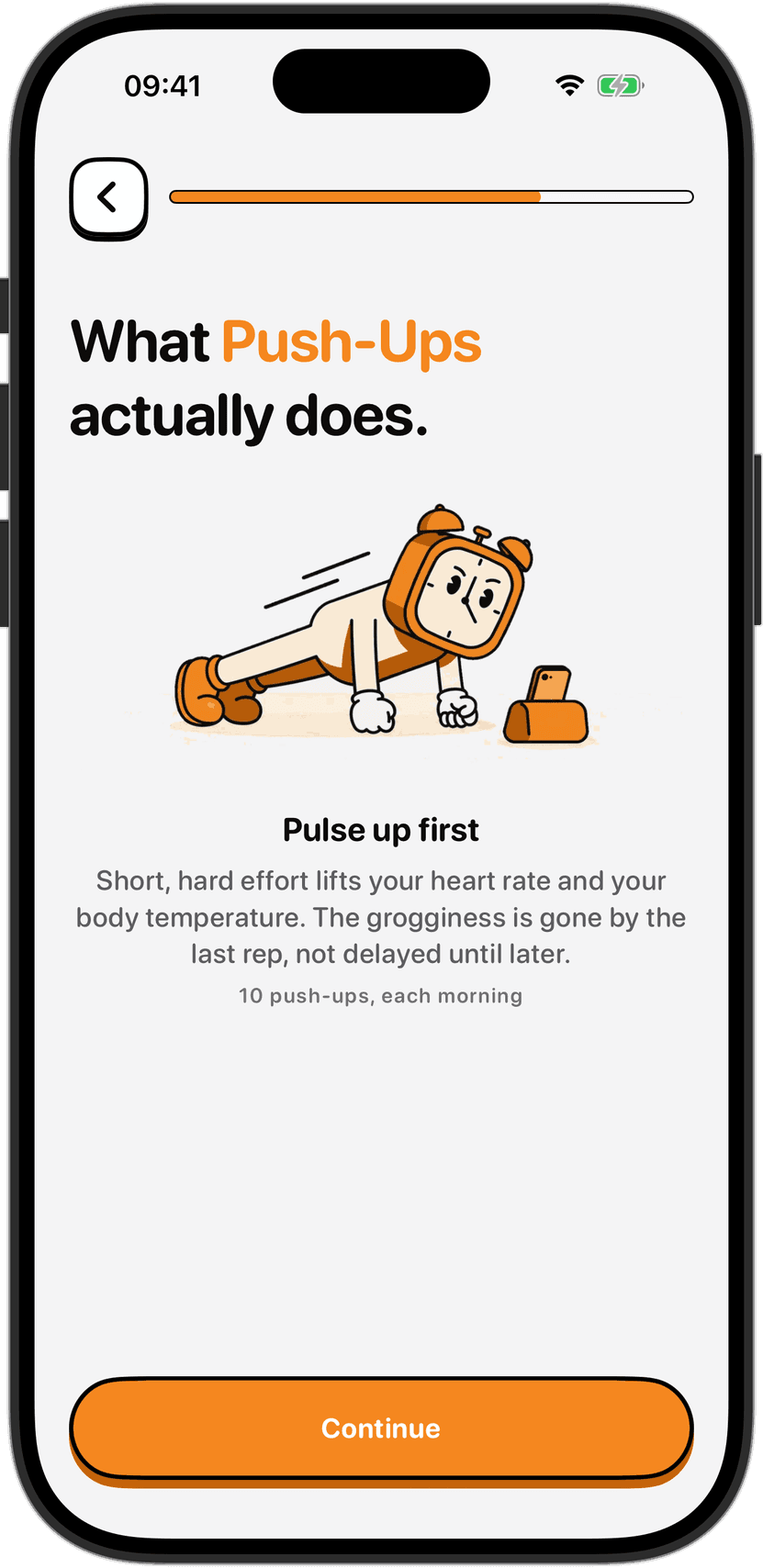
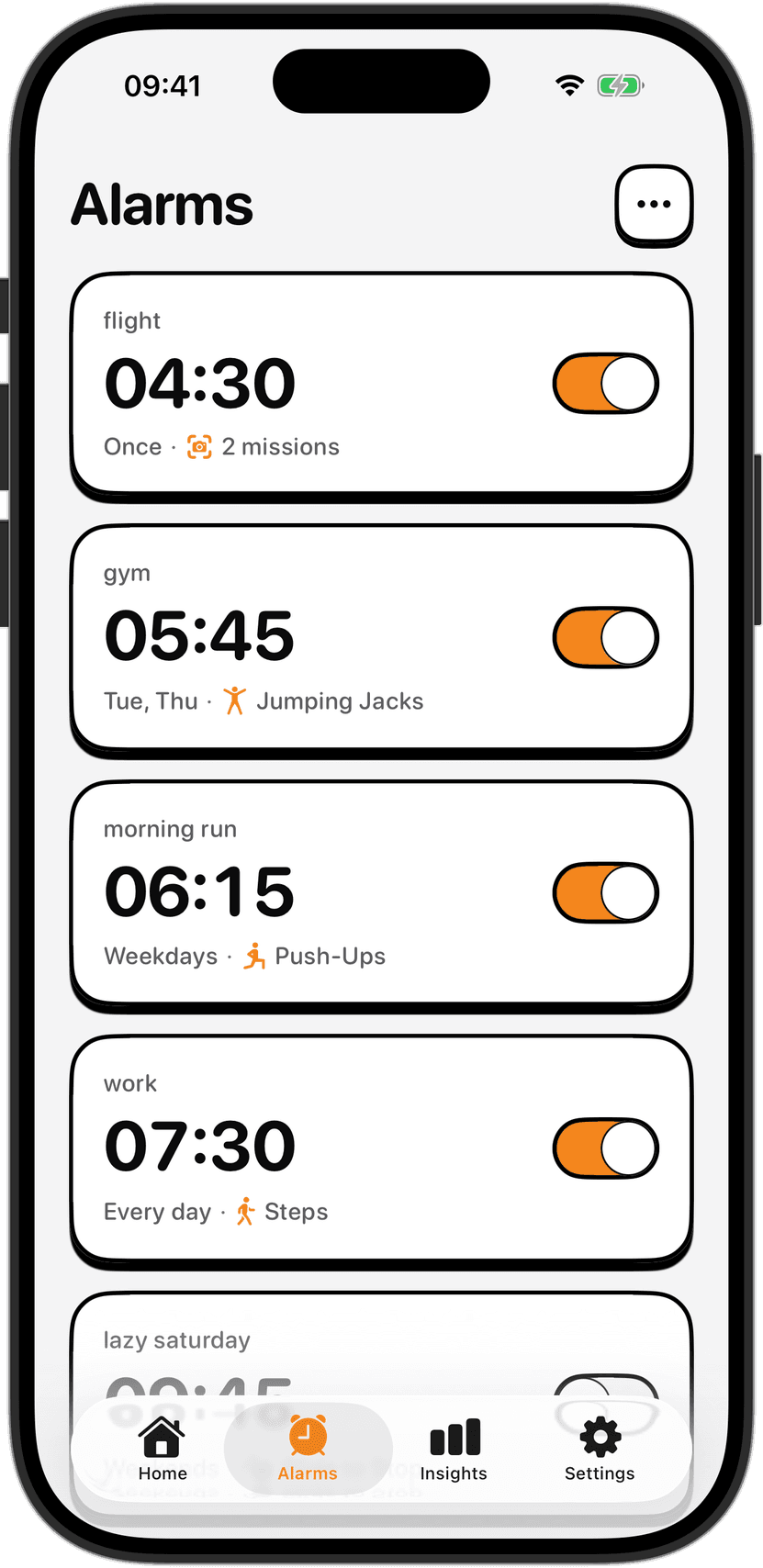
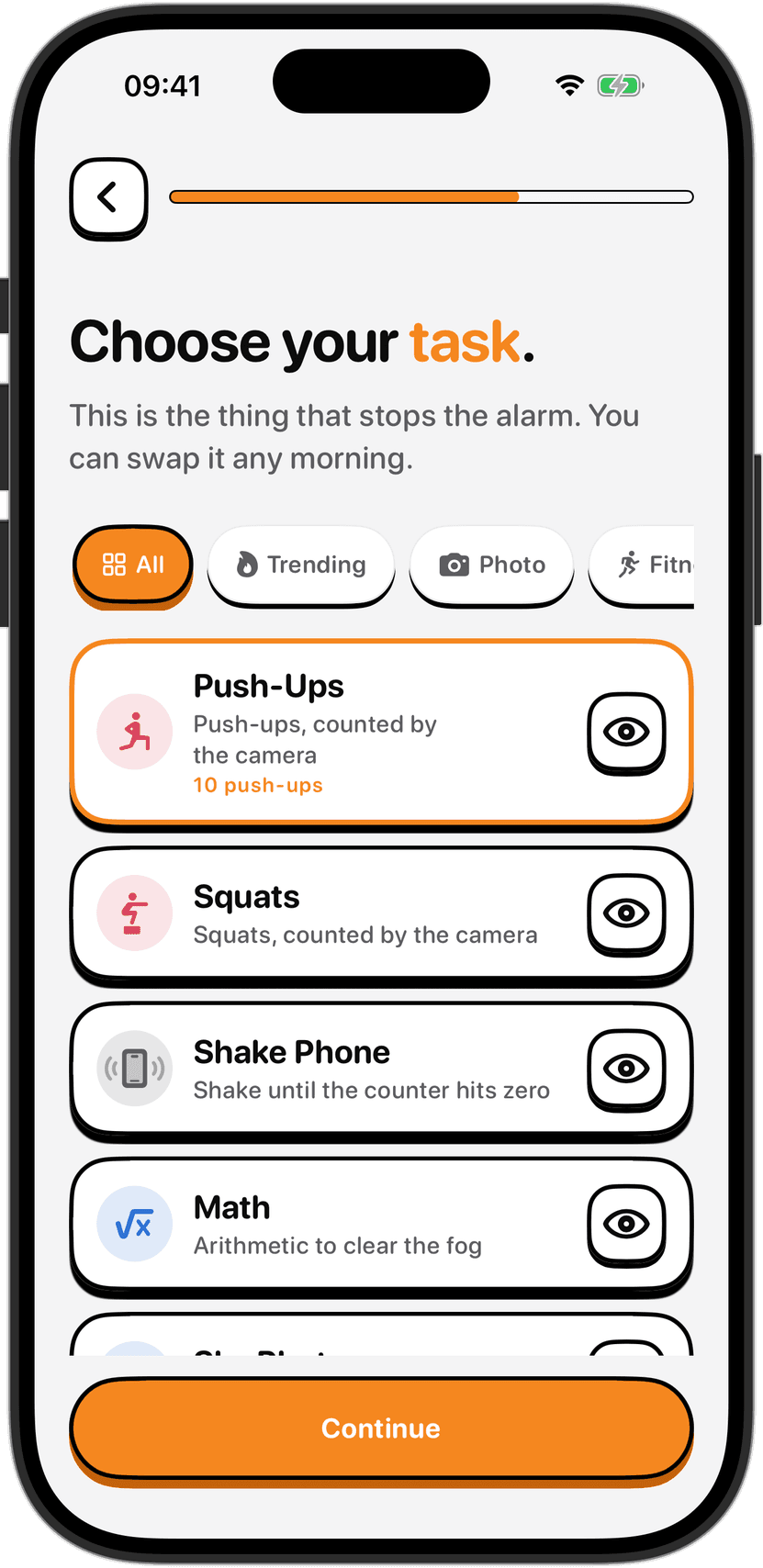
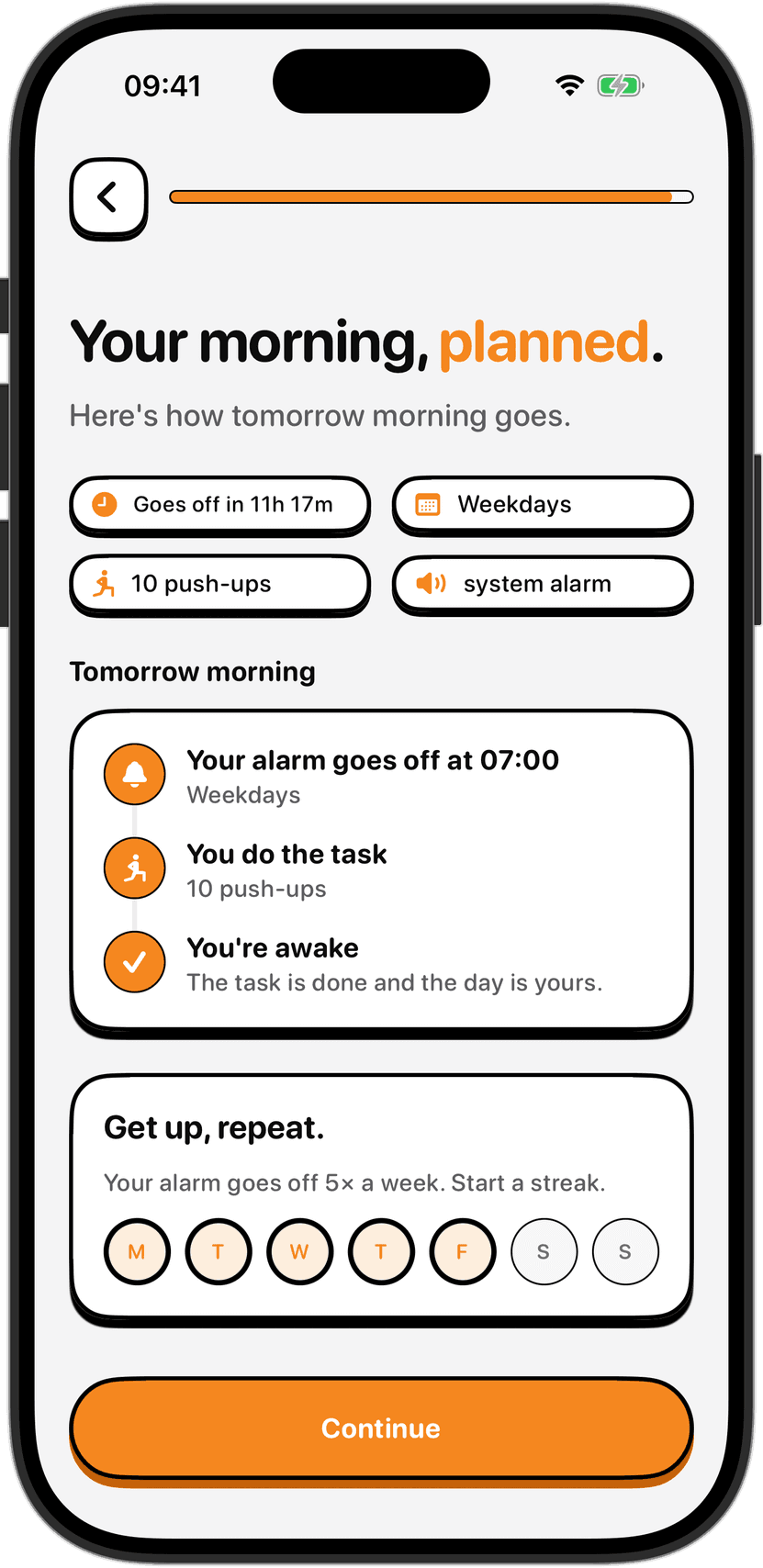
NoNap is built around a single premise: you cannot turn off the alarm without actually waking up. When the alarm rings, you have to complete a physical task or solve a problem before it stops. No snooze button. No way to dismiss it from the lock screen. The task you chose the night before (push-ups, squats, math, a photo, or something else) is the only way out.
This changes the calculation. A snooze button trains your brain to ignore alarms because you know you can press it again in nine minutes. A task that takes 30 seconds when you are awake but feels impossible when you are half-asleep creates a different dynamic. You have to get up enough to finish the task, not just silence the sound.
How they compare: the differences that matter
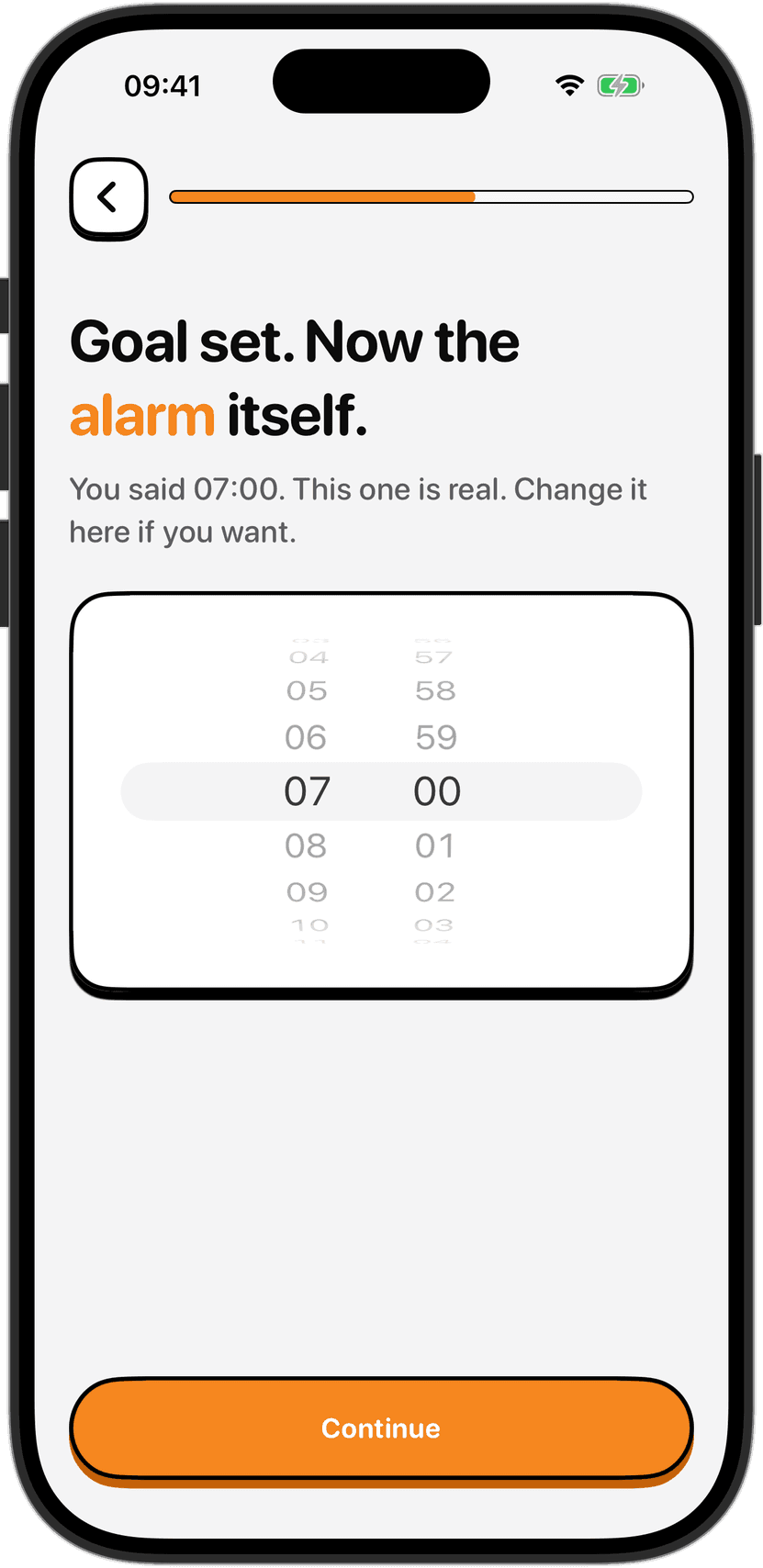
One alarm versus a stack. The iPhone Clock app makes it easy to set multiple alarms as a backup. Many people set five or six, spaced nine minutes apart, knowing they will snooze the first few. That pattern trains your brain to ignore alarms. NoNap gives you one alarm, at the time you actually meant to get up. No stack to negotiate.
Snooze versus friction. Both iPhone alarms and Sleep Schedule alarms snooze. NoNap has no snooze button. If you need those extra nine minutes, you have to complete the wake task first, which usually means you have actually woken up by then.
Sleep routine versus alarm function. Sleep Schedule handles bedtime, wind-down reminders, and sleep tracking. It is a sleep-management system. NoNap is an alarm that refuses to let you ignore it. They do different jobs.
Camera verification. For wake tasks like push-ups or squats, NoNap uses on-device machine learning to count your repetitions. The iPhone Clock app has no camera-based tasks at all. Some third-party alarm apps offer them, but the built-in app does not.
Lock screen bypass. You can dismiss an iPhone alarm from the lock screen with a slide. NoNap locks you out of that shortcut. The only way to turn off the alarm is to complete the task you chose in advance, which requires you to unlock the phone or use the full-screen wake task interface.
Privacy. Both apps keep your data on your device. NoNap has no account and no server; beyond the purchase check it sends only anonymous usage statistics, which you can switch off. Sleep Schedule sends your App Store purchase record to RevenueCat for subscription verification. Neither app tracks your location or records video from your phone.
When to use each
Use the iPhone Clock app if you want a simple, free alarm that you can snooze, you do not mind multiple alarms, or you do not have trouble waking up when the alarm goes off. It is also good if you want to track sleep with your Apple Watch and see trends in the Health app, or if you like a wind-down routine with customizable pre-sleep reminders and focus filtering.
Use Sleep Schedule if you want the Clock app features plus structure around bedtime and sleep tracking, if you want bedtime reminders that gently suggest you wind down, or if you are willing to put effort into consistent sleep and wake times.
Use NoNap if you hit snooze multiple times every morning and want to break that cycle, if a single alarm at your intended time makes sense for your life even if it is uncomfortable, if you want a task (movement, a photo, math, something) to force you actually awake instead of just silencing a sound, or if you are willing to pay for an alarm designed specifically to stop snoozing.
The real difference
An alarm is just sound. Sleep Schedule is bedtime management. NoNap is a non-negotiable rule: this is when you wake up, and this is what you do to prove it. Which one you need depends on whether your problem is falling asleep, staying asleep, or getting out of bed. The iPhone can handle the first two. Only NoNap handles the third.
Sources
Apple Support. "Set up a sleep schedule in Health on iPhone." https://support.apple.com/guide/iphone/set-up-a-sleep-schedule-iphaf56dceb4/ios
Apple Support. "Change your wake up alarm in Clock on iPhone." https://support.apple.com/guide/iphone/change-your-wake-up-alarm-iphf2a780f81/ios
Screen Rant. "Why The iPhone Snooze Time Is 9 Minutes Long (& How To Change It)." https://screenrant.com/iphone-alarm-snooze-9-minutes-why-change-how-apple/