Weekday-only alarms: setting repeat days in NoNap
How NoNap's repeat days work: pick the weekdays for one alarm, leave every day off for a one-time alarm, and read each setting in the alarms list.
Visana Studios
5 min read
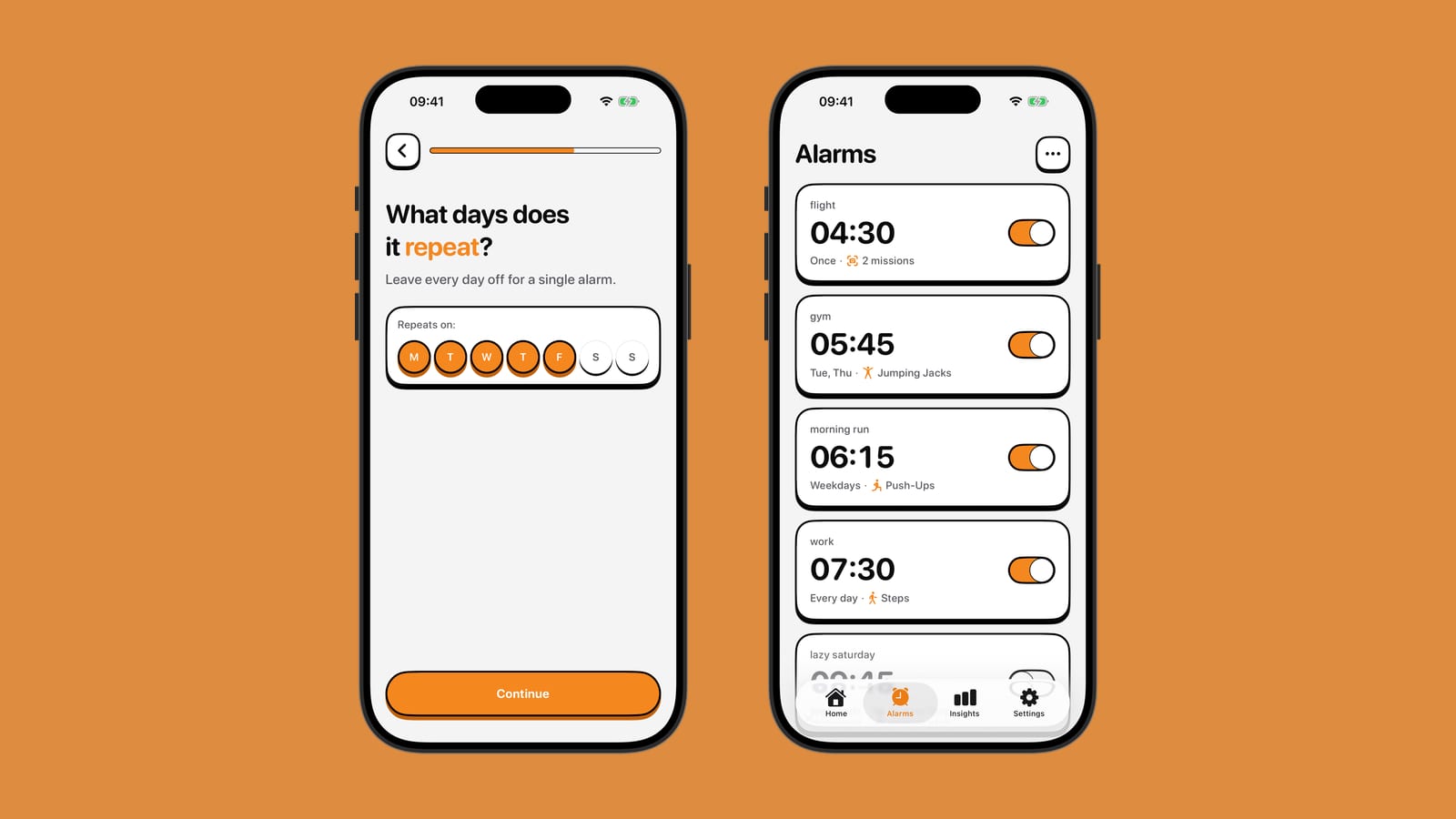
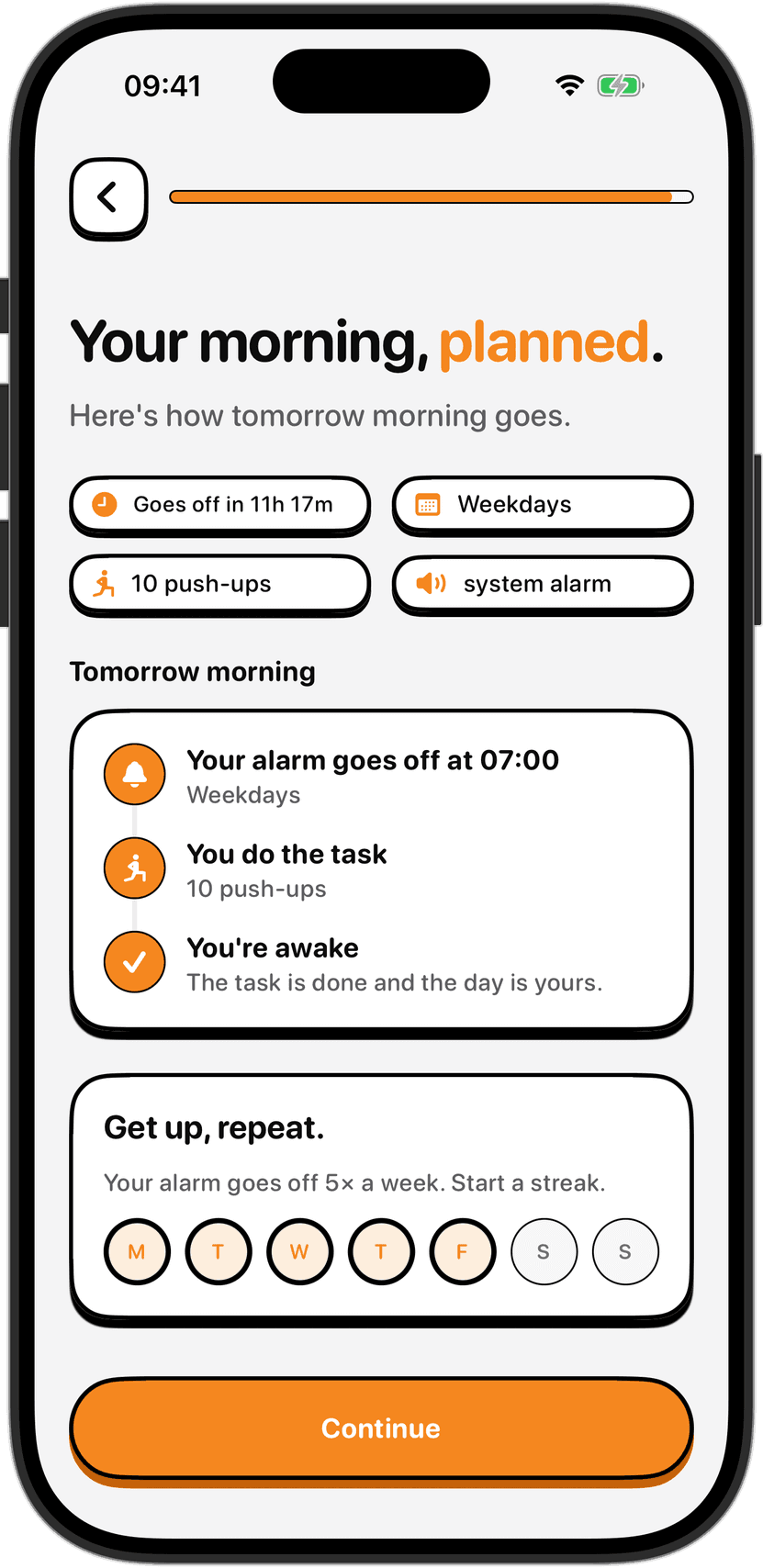
Most weekday mornings don't need a different alarm for each day. They need one alarm that knows which days it belongs to. NoNap handles that with a single control. Tap the days you want, and the alarm rings on those days until you change it. Leave every day off, and it rings once and then stops.
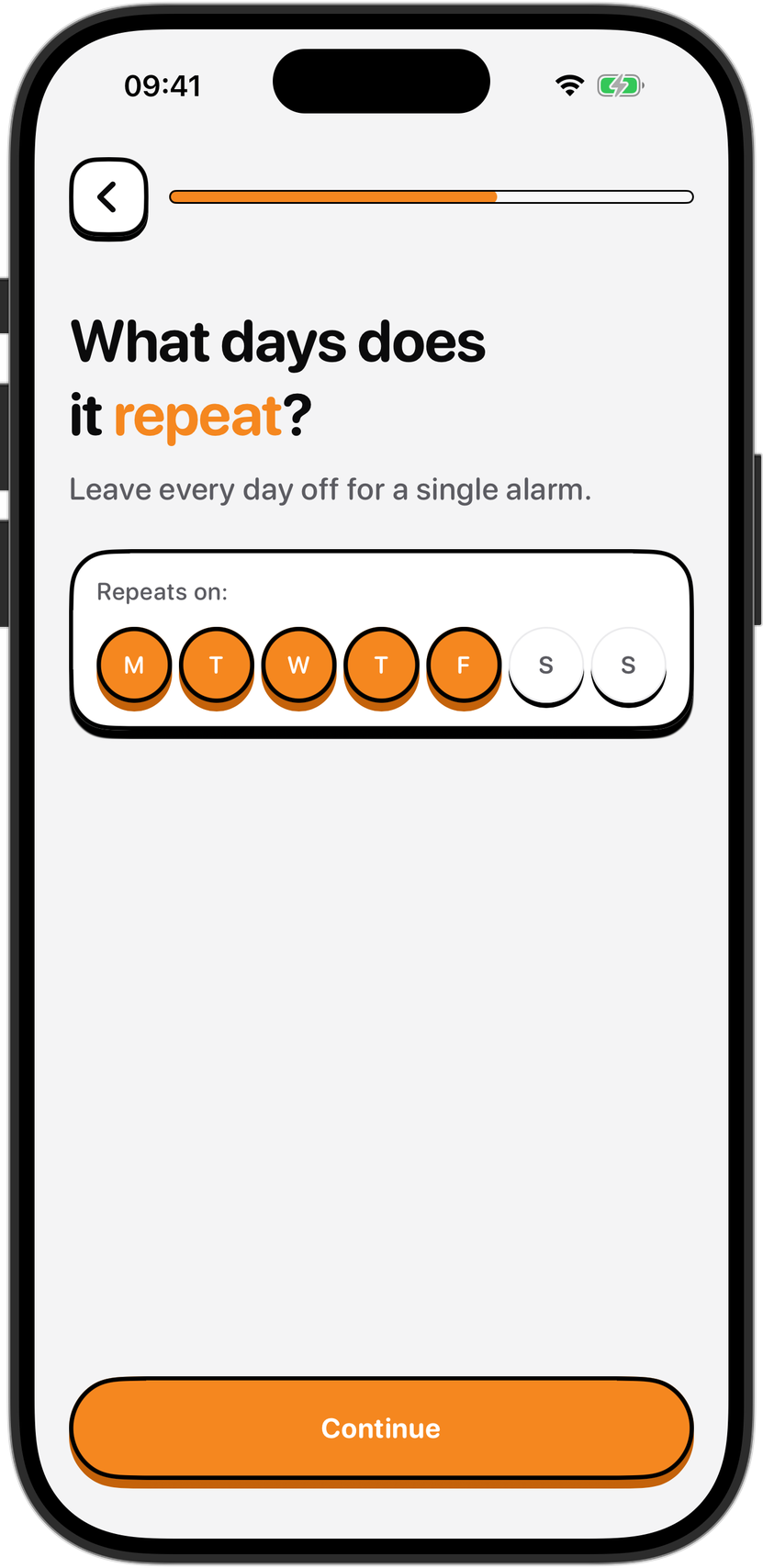
The screen asks what days the alarm repeats, with seven circles from M to S. Selected days fill orange. The line under the question covers the empty case in plain words: leave every day off for a single alarm. One control handles both patterns, a recurring alarm and a one-off alarm, so you never have to hunt for a second screen.
One alarm that repeats, not six that compete
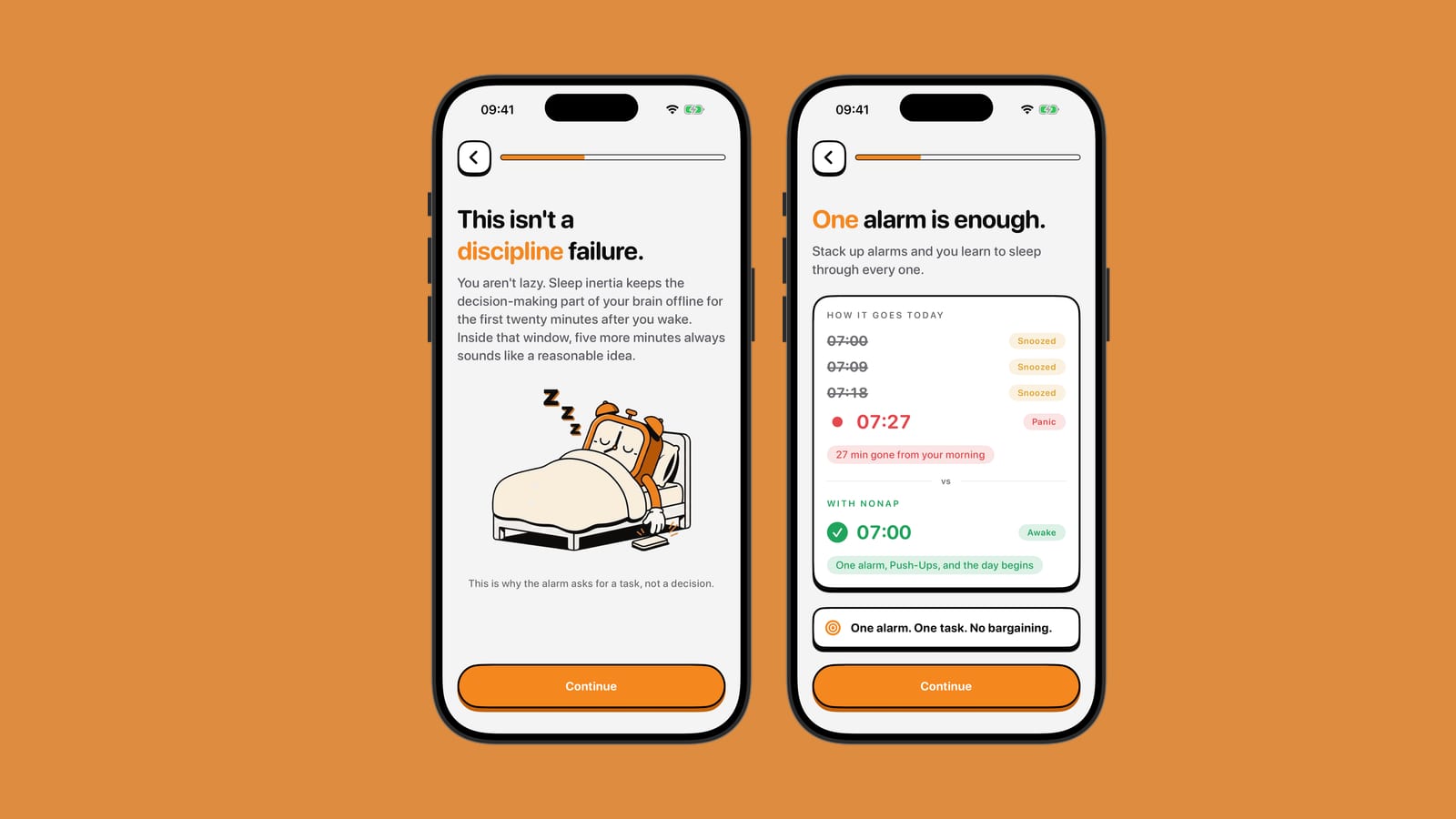
Weekday stacks usually start with a small problem. One alarm at 6:30 doesn't feel urgent, so you add one at 6:35, then one at 6:40. By Friday your phone is buzzing through a row of near-identical times, and you have learned to swipe them all away.
NoNap's position is that this habit defeats the purpose. The landing page puts it in one line: a stack of alarms trains your brain to ignore all of them. That is the app's argument rather than a result from a study, so treat it as a design choice you can test on your own mornings. The practical side holds up regardless. A single weekday alarm means one time to think about, one task to finish, and one row on the list to check.
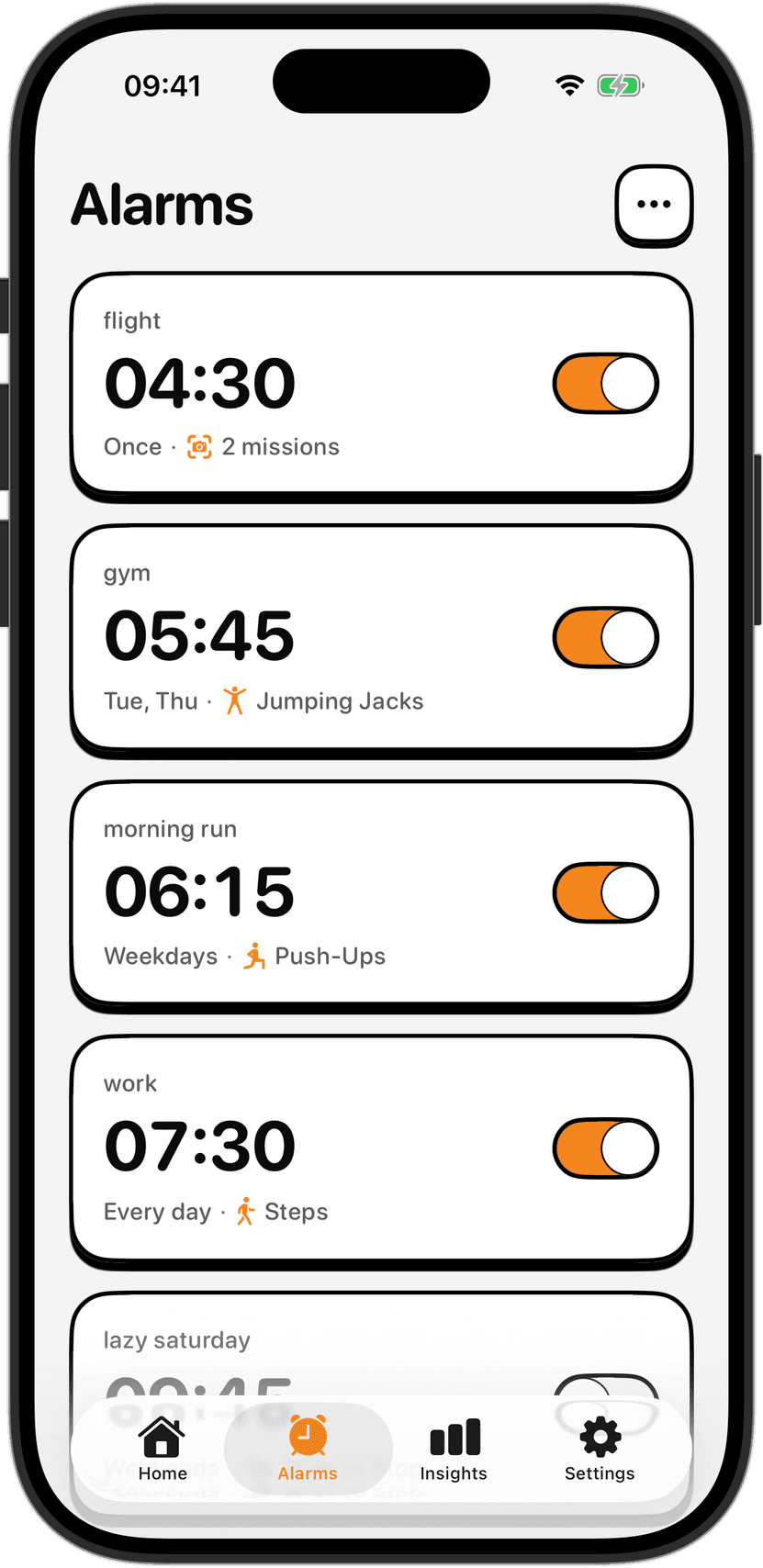
The alarms list makes that easy to scan. Each row shows a name, the time, and a short line underneath that says when the alarm fires and what it asks you to do. In the screenshot, one row reads "Tue, Thu" for a gym alarm, another reads "Weekdays" for a morning run, and a third reads "Every day" for work. A one-off alarm reads "Once". The same line shows the wake task, so "Weekdays · Push-Ups" sits right beside the time.
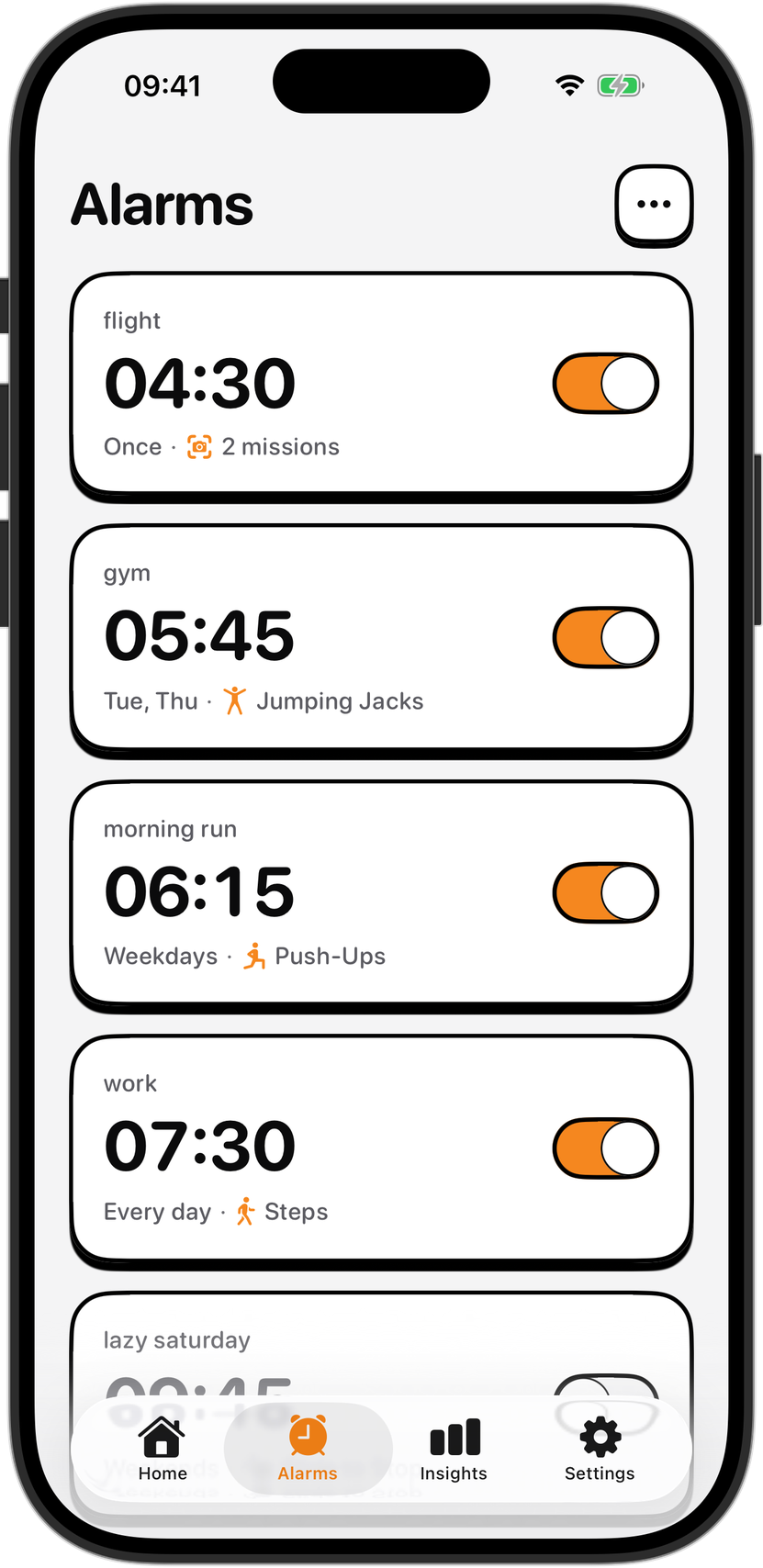
The flight alarm at the top also reads "Once" followed by "2 missions". So a single alarm can carry more than one task. The screen doesn't say which combinations are allowed, so check the picker on your own phone before you rely on a particular pairing.
Setting up a weekday alarm
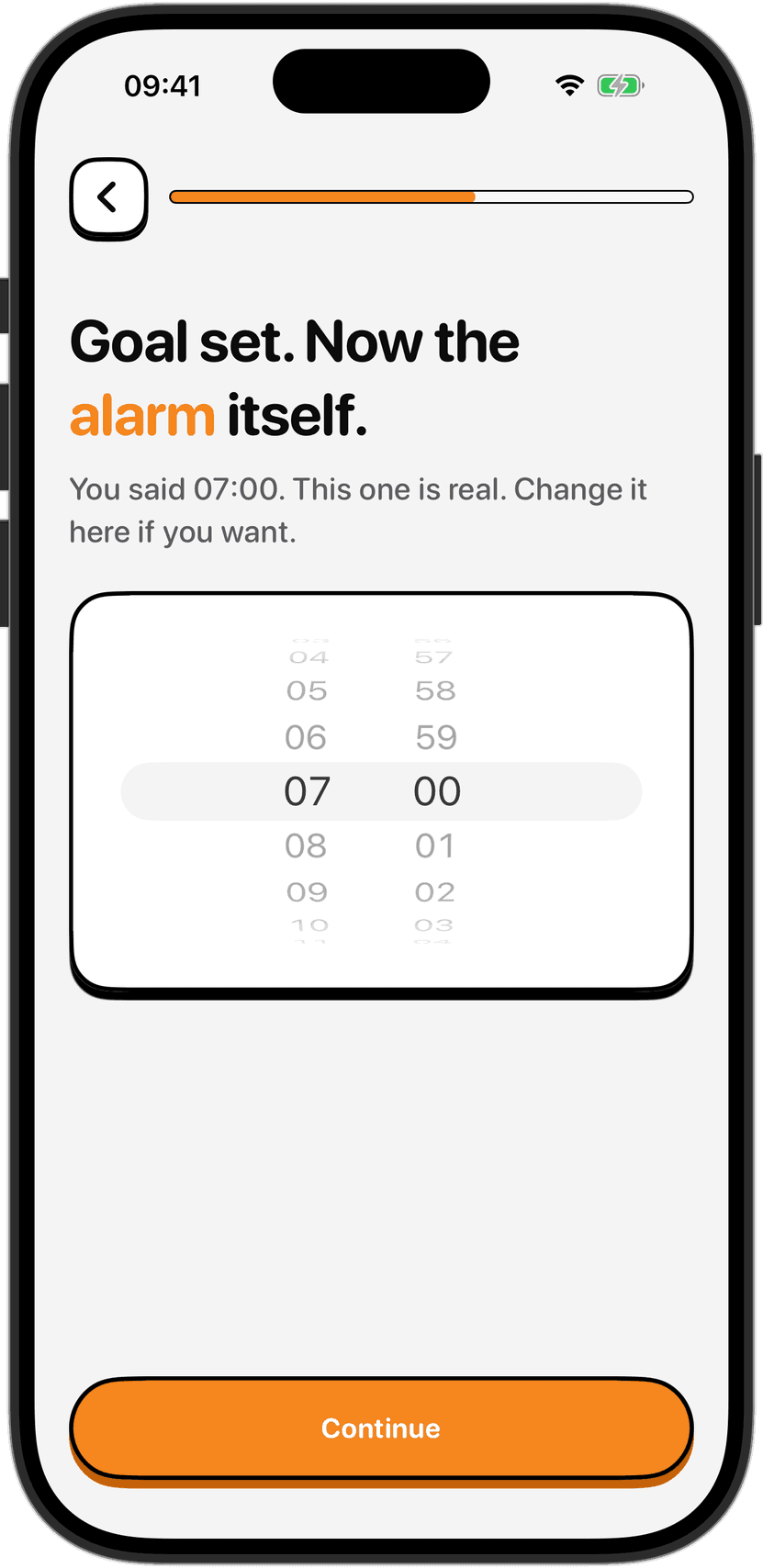
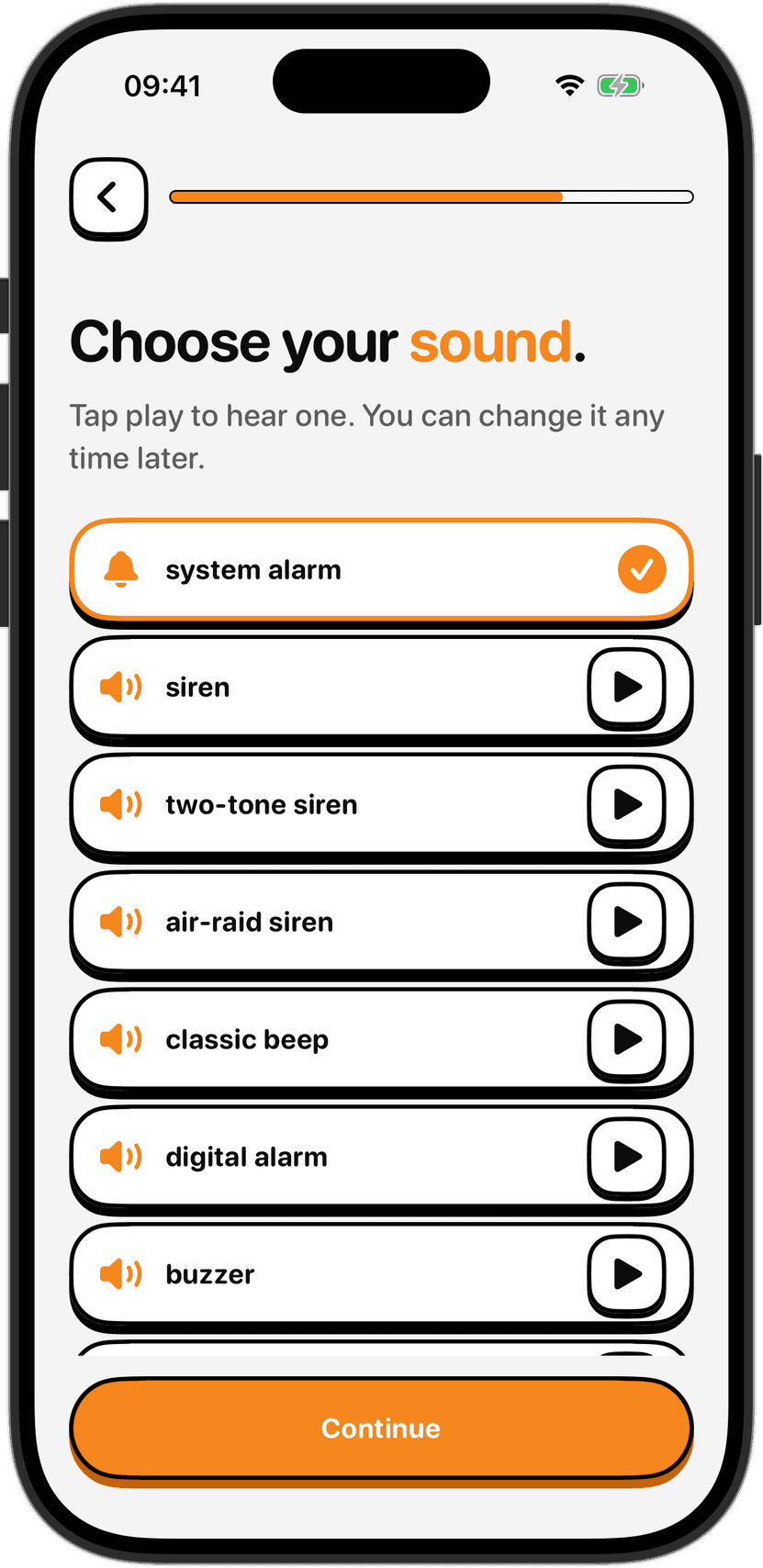
The setup asks for four things: the time, the repeat days, the wake task and the alarm sound. NoNap's own copy describes the whole process as about twenty seconds. That figure belongs to the app. Your first alarm will probably take longer, especially if you spend a while choosing a sound.
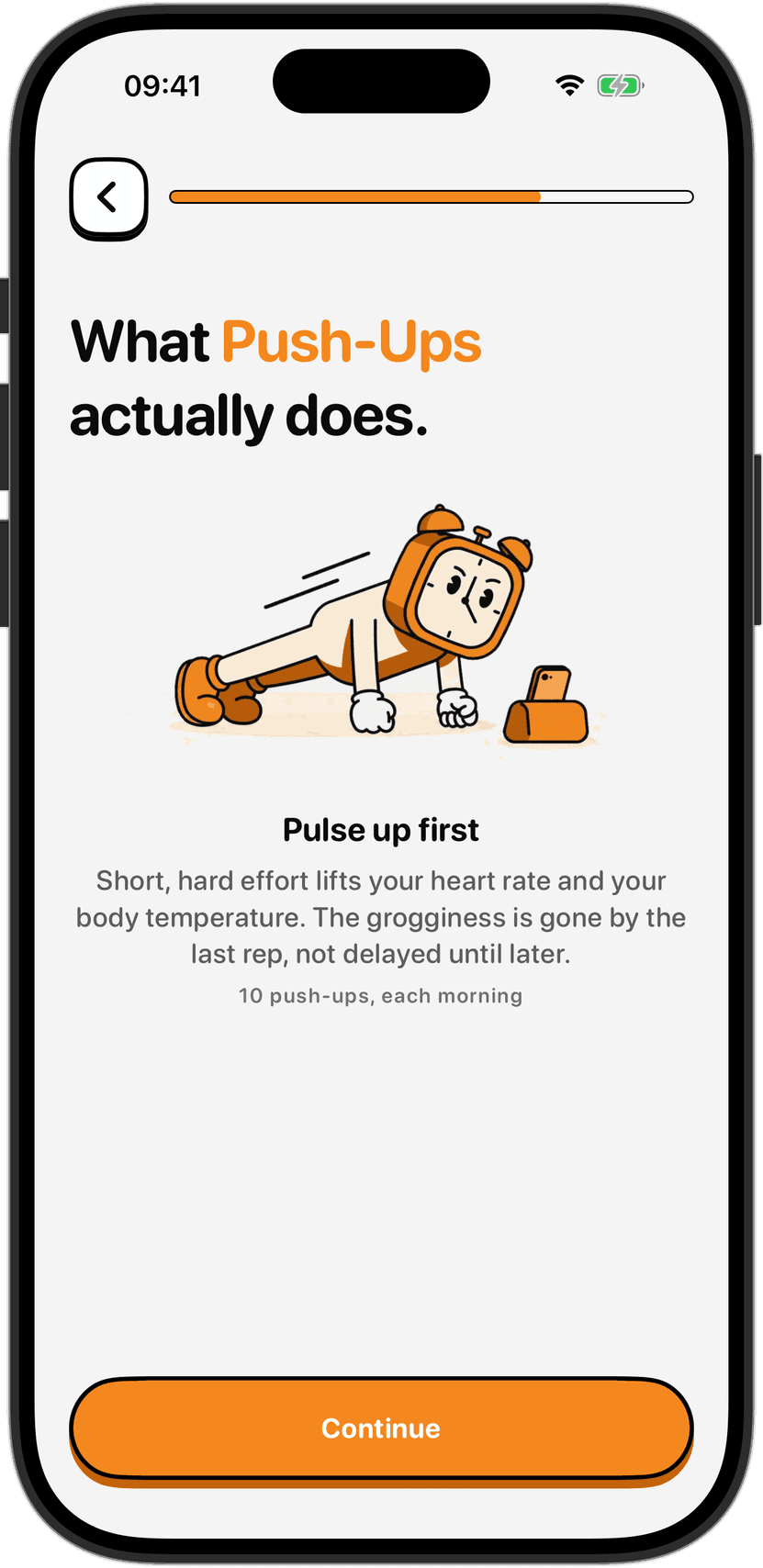
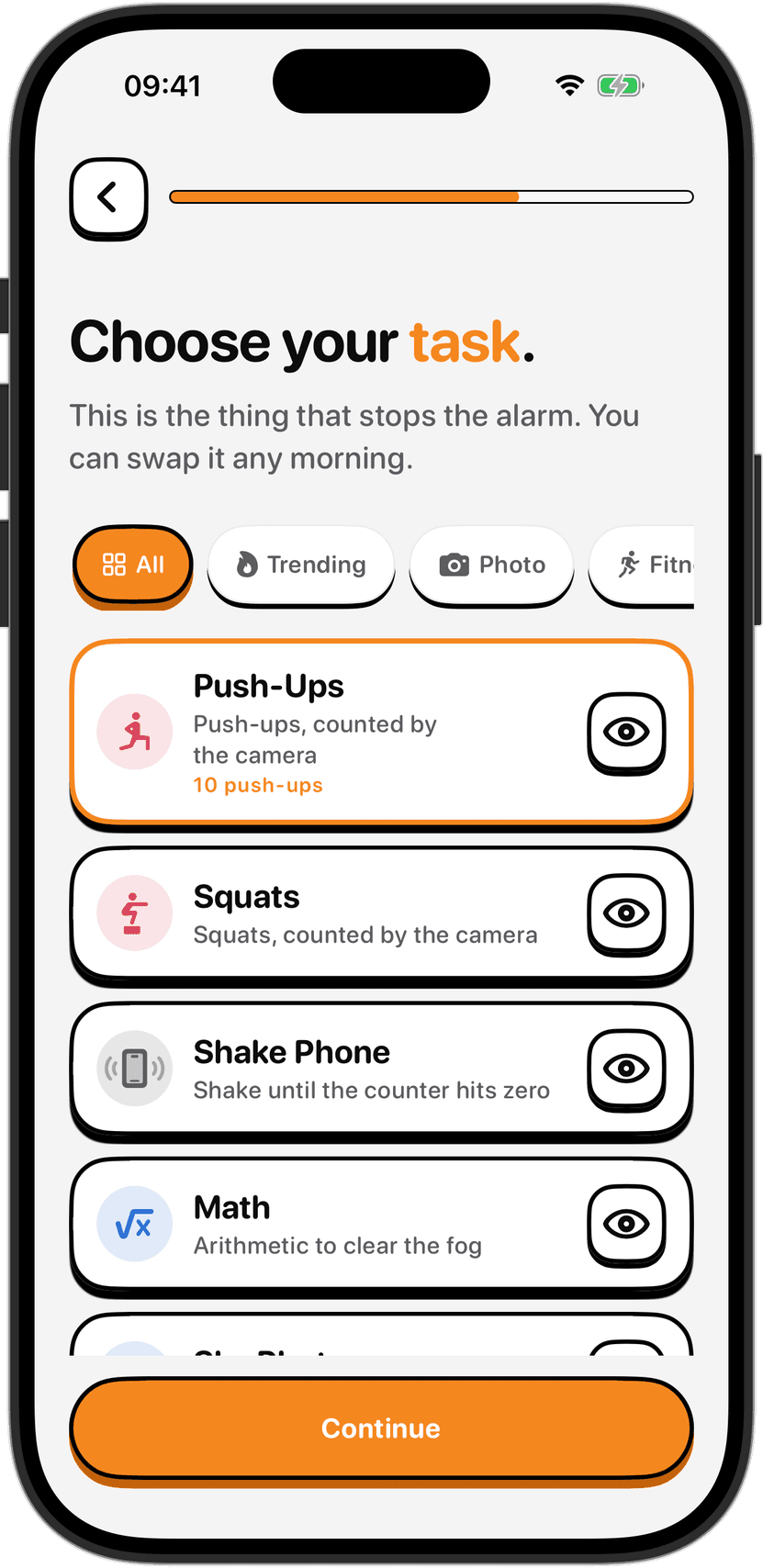
The task is set per alarm, not for the whole app. That means a weekday alarm can use Push-Ups while your Saturday alarm uses Math, and neither affects the other. Some people keep the strictest task for the days they have somewhere to be. Others use the gentlest one for a lie-in. Both are fine, provided the task you pick is one you will finish on a bad morning.
Weekends, holidays and changing your mind
If your weekends look different, you have two sensible routes. You can leave Saturday and Sunday off, and the weekday alarm simply stops ringing on those days. Or you can create a second alarm for weekends with its own time and task. The alarms list already includes a row called "lazy saturday", which is the second route in use.
Changing an alarm is just editing it. You can adjust the time, the days or the task whenever you like. Before you edit one the night before a big morning, though, remember that the terms list changes among the things that can affect whether an alarm reaches you. Editing the night before is fine. Editing and then forgetting to check the result is where mornings go wrong.
The purchase terms add two points worth knowing. Recurring alarms you have already set keep ringing until you turn them off, even if a subscription lapses. Adding or editing alarms, however, needs an active plan. So if you are considering a change to a weekday routine, make it while your access is active.
Plan the morning the night before
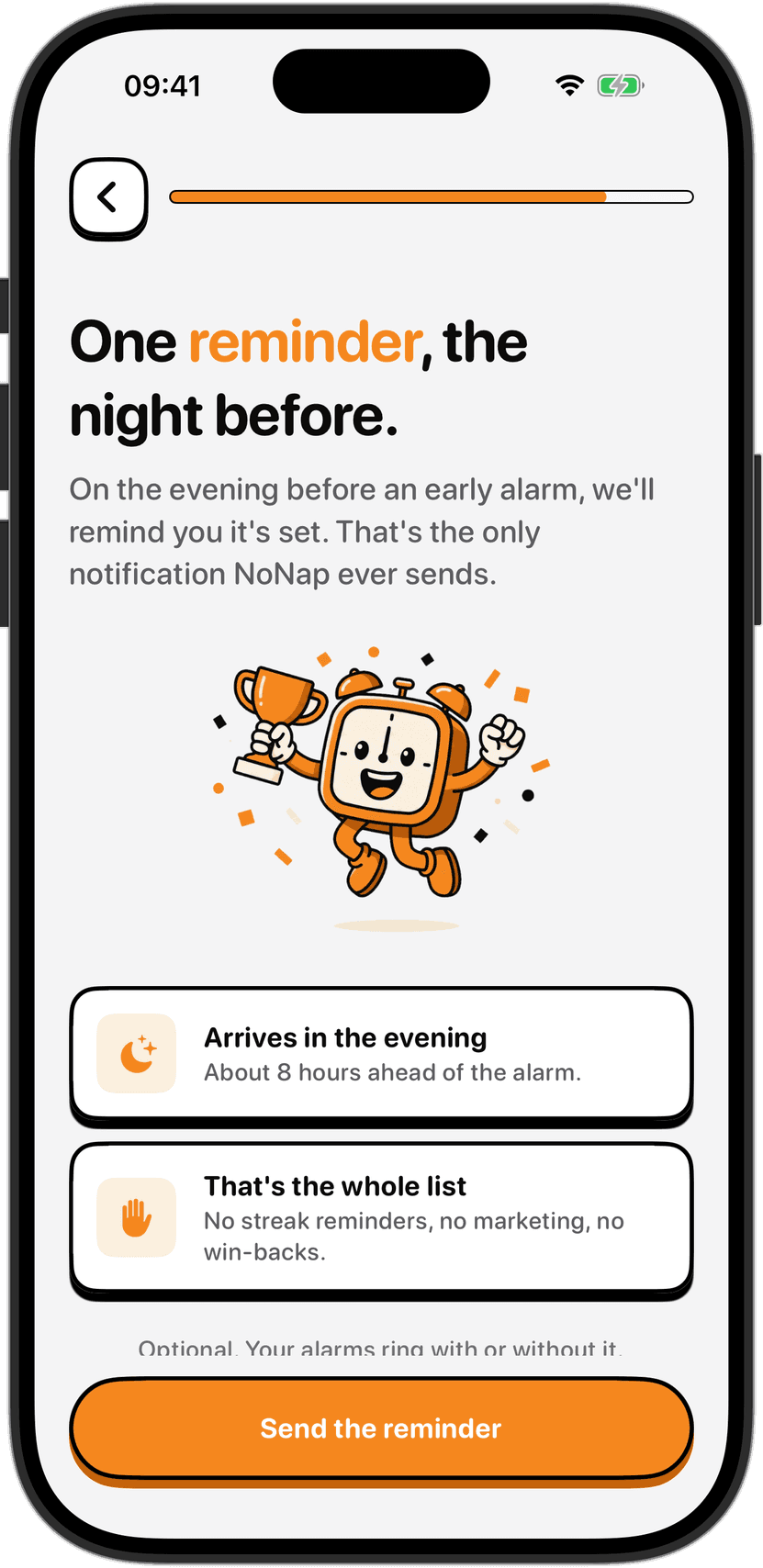
A repeating alarm is only half of a good weekday routine. The other half is what happens before bed. NoNap sends a reminder the night before, and the app's copy frames this as the point where the morning gets decided. Laying out clothes, choosing the task and checking the alarm takes a few minutes in the evening and removes the decisions you would otherwise make half-asleep.
The earlier post on why your bedtime decision shapes your morning wake covers the reasoning in more detail.
A backup for the mornings that matter
The terms are blunt about this, and they are right to be. NoNap is an aid, not a guaranteed wake-up service. The terms ask you to keep a backup alarm for anything that matters, such as work, travel, exams, medication or appointments.
A few things can stop an alarm reaching you no matter how carefully you set it. The terms list iOS behaviour, Low Power Mode, a flat battery, Background App Refresh restrictions, Screen Time limits and force-quitting the app among them. The feature copy says the alarm rings through the ringer switch and Focus modes, but the terms still list both as things that can affect delivery. A second alarm on a different device costs nothing and covers the gap.
Choosing a task you can finish safely
A weekday routine lasts a long time, so pick the task with that in mind. The terms ask you to choose tasks and targets you can complete safely on a bad morning, not on your best one. Check your surroundings before a physical task. Keep clear space around you, away from stairs, glass, sharp edges and hot surfaces. If something hurts, or you feel dizzy or short of breath, stop and get help rather than pushing to hit the number.
If you can't decide between tasks, the post on choosing your wake task walks through the trade-offs. The FAQ also answers common questions about how the tasks and the alarm itself behave.
Sources
NoNap repeat days screen and alarms list, taken from the app screens in this repository (public/screenshots/07-repeat-days-picker.png and 16-alarms-list.png). These show the seven-day repeat control, the "leave every day off for a single alarm" line, and the row labels "Once", "Tue, Thu", "Weekdays", "Every day" and "2 missions".
NoNap Terms of Service, effective 12 September 2026, at nonap.app/terms. The sections on physical activity, wake tasks, alarm reliability and purchases support the statements about physical safety, the backup alarm advice, the list of factors that can affect alarm delivery, and the rules that apply to recurring alarms and editing after a subscription lapses.
NoNap landing page copy in lib/site-config.ts, which supplies the "stack of alarms" line, the setup description and the night-before reminder wording. These describe the app's own position and are not independent research.